How to Create Stickers as a Printable PDF
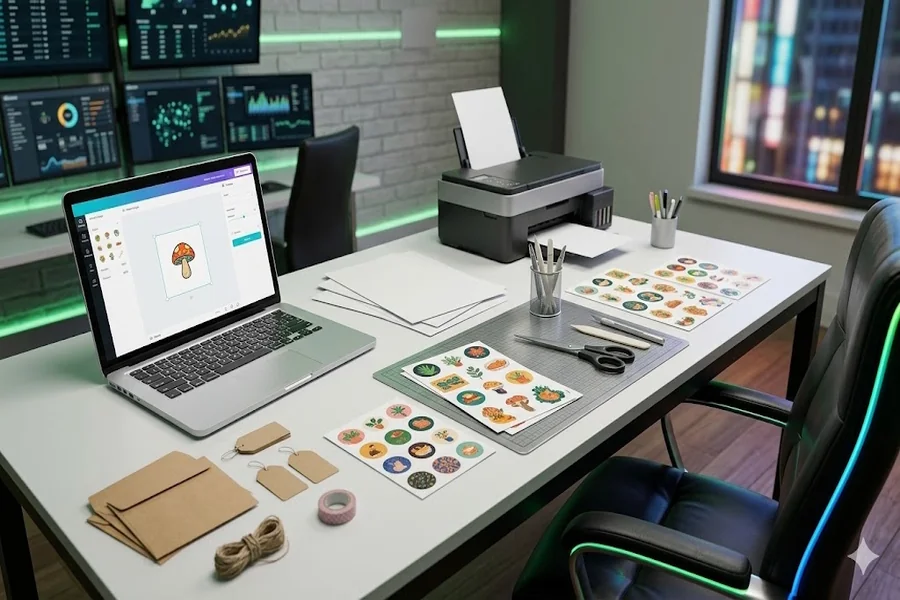
To create stickers as a printable PDF, design your sticker artwork, arrange the stickers on a page, and save the page as a PDF before printing on sticker paper. Adobe Firefly’s sticker generator handles the design, giving you PNG stickers you can convert to PDF with Adobe Acrobat’s free online tool.
Imagine that a 2nd grader is establishing a new reading incentive system for the upcoming semester. Each completed book is to receive a sticker, and the class has a voted-for owl mascot. The store-bought sticker packs don’t come close either, and she wants to have her own: An owl reading, an owl cheering, and an owl with a gold star on every tenth book. Those designs can be reproduced best using a PDF. PDFs maintain the layout, print the same on nearly any printer, and are simple to pass along to a classroom assistant, co-teacher, or school office copy machine.
It consists of three easy steps: 1. Make the art, 2. Place it on a page of the same size as your sticker paper, 3. Export a PDF. Each stage can be performed in a web browser, making it easier to use on school computers (where software installation may be unavailable). It also implies that the entire project can be completed in one planning period.
How Do You Create Stickers as a Printable PDF?
Creating stickers as a PDF: Begin with the artwork. For Firefly, create a prompt for every sticker, or upload a picture to serve as a reference. Adobe suggests the terms “white sticker border,” “cartoon style” and “transparent background. Firefly can also create many different versions of each character or theme, making it easy to create a matching theme set.
Firefly downloads stickers in PNG format. When the background is removed, each image is transparent and the stickers will not have a white box around them when printed.
Then, convert to PDF. Adobe Acrobat’s free online service lets you turn a PNG into a PDF by simply loading the image into any web browser. If there are a number of pages, you can use Acrobat’s online merge feature to merge them into one file. To get a complete sticker sheet, you need to create a layout or label program and place all of your PNGs on one page, then save that page as a PDF.
Choosing a Tool to Create Stickers Online for a Classroom Reward Chart
A suitable online tool for developing stickers for a classroom reward chart should be able to produce stickers rapidly, and should be able to export printable versions of the design and should be compatible with school computers. The majority of teachers end up combining two or more tools. The costs of e options are compared in the table below.ach step.
| Platform | Best for | Key details |
| Adobe Firefly | Designing custom, themed reward stickers | Create stickers from prompts or photos; multiple variations of one character; transparent PNG downloads; free daily generations with an Adobe account |
| Adobe Acrobat online | Turning sticker images into printable PDFs | Converts PNG, JPG, BMP, GIF, and TIFF files to PDF in any browser; free online merge tool to combine PDFs |
| Avery Design & Print | Matching designs to Avery sticker and label sheets | Free online design software; upload your own artwork or use templates; print at home on Avery sheets |
Start small. Create 5 to 6 stickers, print one page of them and size them correctly before printing your sticker sheets. When the first set works, save your PNG and PDF files to a folder by month or unit. This way, the same stickers can be reprinted next term and a holiday version can be attached to the sticks for holidays; or the file can be shared with another teacher who wishes to use the same reward system in their own class.
FAQ
So, why not print the PNG images directly?
While you can print PNGs directly, a PDF will ensure that your layout looks the same on every printer. This is important if you have to match stickers to shapes on a label sheet. Another teacher would also be able to open a PDF on nearly any device to use it, and a copy center would be able to use a PDF the same way as well.
What size should reward chart stickers be?
Before measuring the squares on your reward chart, cut the stickers a little smaller so that they fit without crossing any lines. Make sure there is some space between the designs on the sheet to allow for printing or cutting without cutting into them. If you are using pre-cut label sheets, apply your layout to the label template of this specific product. Simple shapes – circles, squares – are easier to cut out than outlines for full page sticker paper.
Are students able to create their own sticker?
When users upload images, the Firefly sticker generator page requires that they be 18 years or older — which makes it ideal for teachers making stickers for their class. Students can still contribute with voting for themes, proposing characters or drawing sketches of ideas according to your prompts.